DIGITAL CULTURETHE LAB / DIKULT105

DIKULT105 · Autumn 2026

The equipment room

Pick a tool for your next experiment. These guides show you how to use it.

NEW ROOM / COMPUTING HISTORY

Your tools have a past. Go play it.

Feed program cards, rewrite Turing’s tape, find a relay bug and compose a tiny computer score.

Boot the time machine →

LAB 1 → LAB 2 / MAKE YOUR PAGE RESPOND

Choose a machine. Make something happen.

You built the page in Lab 1. Now give it a response: choose a machine, try one action, and bring it into your own project.

0 / 6 calibrated
HTMLYou made the elements.
CSSYou chose their appearance.
JAVASCRIPTNow choose what they do.
01

YOUR CHALLENGE

Power the click circuit

Send three signals. Watch the counter change.

EXPERIMENT 1 / 6A button can trigger a change.Send three signals. Watch the counter change.
Need the code explained?

HTML makes the button. CSS gives it a style. JavaScript listens for a click and changes the page.

<button id="future">See the future</button>

Signals received / 0

button.addEventListener("click", () => {
  count += 1;
});

In your own page: make one button change one sentence. Then try Tab and Enter.

HTML field guide / find an element for your project

Need a heading, image, list, link or control? Look up the element when your project needs it.

Open MDN's complete HTML elements reference

Optional reference. The JavaScript beginner guide explains the few elements needed for your first click.

02

YOUR CHALLENGE

Lock onto an element

Scan the paragraph and button. Then scan #missing.

EXPERIMENT 2 / 6A selector must match your HTML.Scan the paragraph and button. Then scan #missing.
Need the code explained?

An id such as id="story" is selected with #story. A class such as class="story" is selected with .story. No match returns null.

<p id="story">My place, today.</p>

The bus stop is quiet.

Choose a selector.

document.querySelector("#eq-scan-story");

In your own page: find the id of the paragraph you want to change. Use that exact id in your JavaScript.

03

YOUR CHALLENGE

Flip the time switch

Show the future. Click again to return.

EXPERIMENT 3 / 6State remembers which view is showing.Show the future. Click again to return.
Need the code explained?

State is a value your code keeps. Here, false means “now” and true means “future”. Each click switches the value and the sentence.

<p id="story">My place, today.</p>

The bus stop is quiet.

showingFuture = false

showingFuture = !showingFuture;
story.textContent = showingFuture ? future : now;

In your own page: let a second click bring back the original text. Check both directions.

04

YOUR CHALLENGE

Intercept a signal

Let one signal arrive. Cancel the next one.

EXPERIMENT 4 / 6A delayed action can be stopped.Let one signal arrive. Cancel the next one.
Need the code explained?

setTimeout queues an action after a delay. clearTimeout cancels that queued action before it runs.

<button id="send">Send a signal</button>

Relay ready.

const timer = setTimeout(sendSignal, 2000);
clearTimeout(timer);

In your own page: decide whether a delay helps the story. Give people a way to stop it if they need one.

05

YOUR CHALLENGE

Repair the broken wire

Run the broken line. Choose the # selector. Run again.

EXPERIMENT 5 / 6An id uses #; a class uses a dot.Run the broken line. Choose the # selector. Run again.
Need the code explained?

The HTML has an id. A dot asks for a class, so the first run finds nothing. A hash asks for the id and repairs the connection.

<p id="eq-repair-story">Waiting for a signal.</p>

Waiting for a working selector.

document.querySelector(".eq-repair-story").textContent = "Signal received";

Ready to run.

In your own page: read the error, check the selector against the HTML, change one thing, then run it again.

06

YOUR CHALLENGE

Shrink the test chamber

Try phone and laptop widths. Break the width, then repair it.

EXPERIMENT 6 / 6Your layout must fit its screen.Try phone and laptop widths. Break the width, then repair it.
Need the code explained?

A fixed 640px box spills out of a 360px screen. A 100% width follows its container. The maximum width stops it growing forever.

<main class="my-page">A story to read.</main>

Bus stop / 2040

A story should fit the screen you read it on.

Responsive sample ready.

width: 100%;
max-width: 720px;

In your own page: check that text wraps, buttons remain usable and the page does not scroll sideways on a phone.

EQUIPMENT ROOM · CONSTRUCT TOOLKIT

Everything for Construct in one drawer.

Alinta's six templates, the rules to remember, shortcuts, fixes and tricks. Come back here whenever you build.

One way of thinking, three tools

What you learned in Lab 1 and 2 is the same thing Construct does with buttons.

IdeaLab 1 · HTML/CSSLab 2 · JavaScriptLab 3-4 · Construct
Things on a sceneElements on a page: <p>, <button>querySelector("#story") finds oneObjects on a Layout: Text, Sprite
PropertiesCSS: color, font-sizetextContentProperties panel: Text, Size, Color, Initially visible
When → do(not yet)addEventListener("click", …)Event: On tap object → Set text / Set visible
Remember a stateSecond click changes it backToggle, variables, Go to layout
Show it to someoneOpen the pageTest both clicksPreview, then Lab 5: test and publish

Alinta's templates

Download them from Mitt UiB › Files ↗, then Menu › Project › Open local file in Construct. Each card says what it teaches and what to try first.

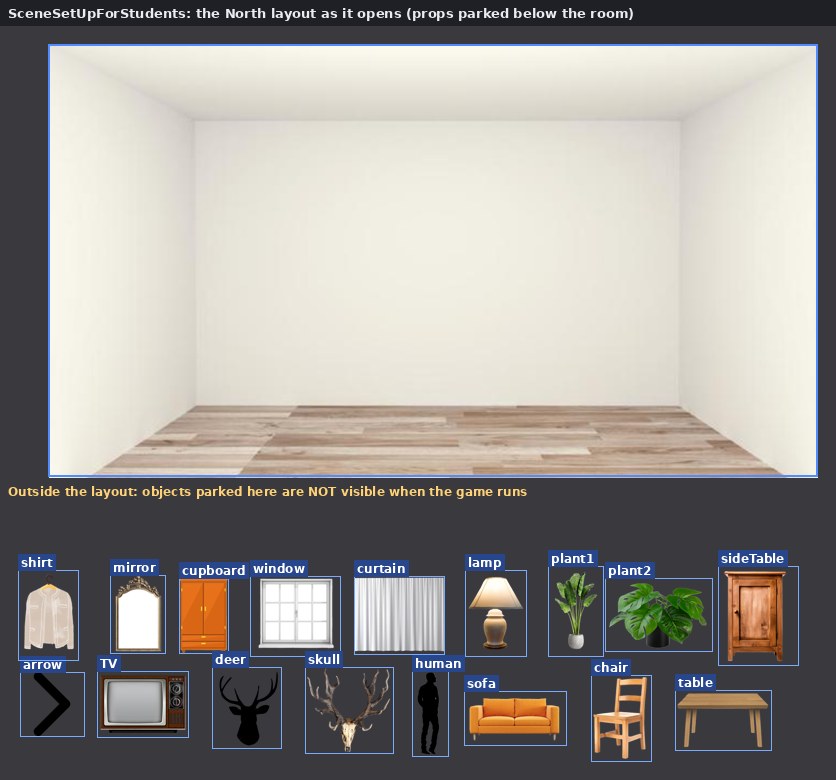
TEMPLATE 1 · SCENE BUILDING

An empty room, waiting for you.

SceneSetUpForStudents.c3p

First try: Move a prop inside North. Preview. Move it outside again and compare.

The layout decides what the visitor sees.

Used in: Lab 3 and your own scenes

Open the guide →

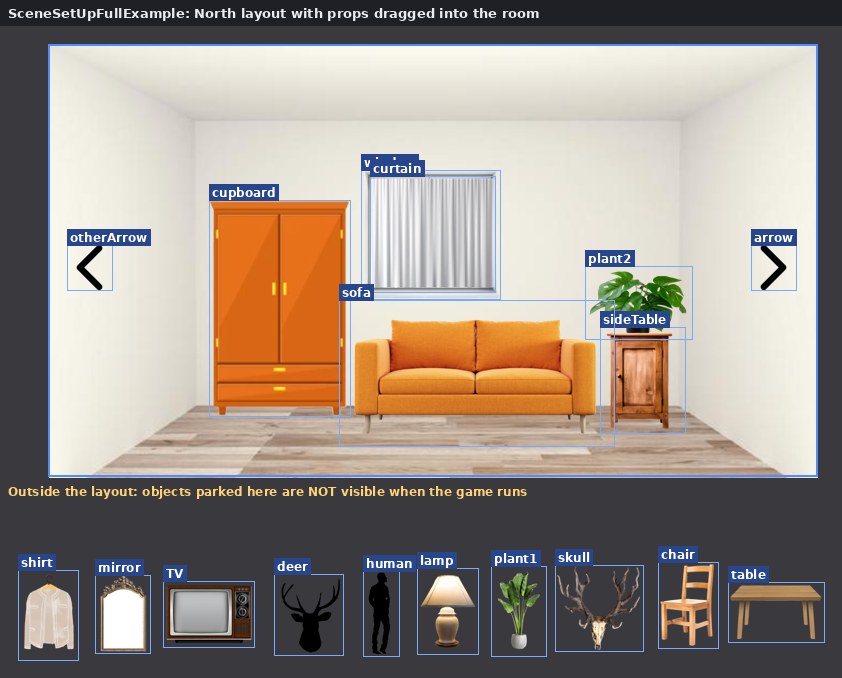
TEMPLATE 2 · VARIABLES

Tap the cupboard. Pull the curtain.

SceneSetUpFullExample.c3p

First try: Preview and tap the cupboard twice. Open its event sheet and find the tap condition and the cupboardOpen variable.

A variable remembers which state is showing.

Used in: Lab 4: rules

Open the guide →

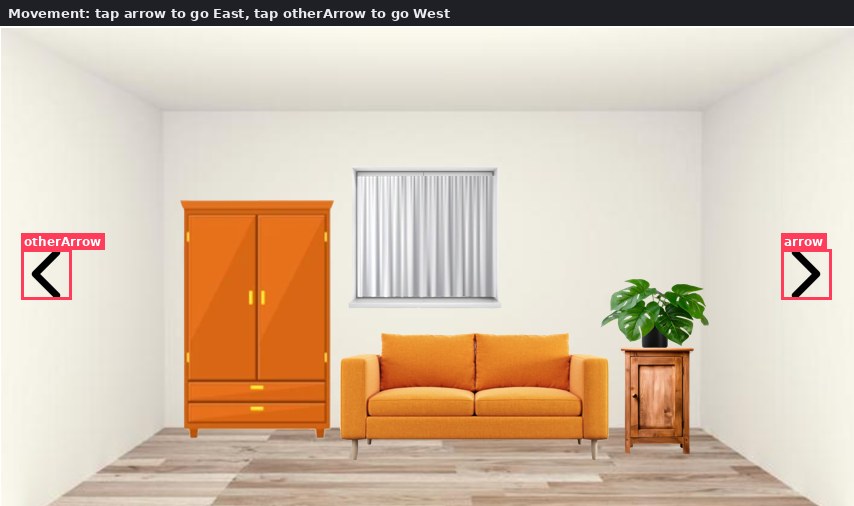
TEMPLATE 3 · GO TO LAYOUT

Walk from wall to wall.

SceneSetUpHowToMakeMovementExample.c3p

First try: Travel from North to East. Repair the return arrow, then test the round trip.

A visible arrow needs a rule and the right destination.

Used in: Lab 4: rooms

Open the guide →

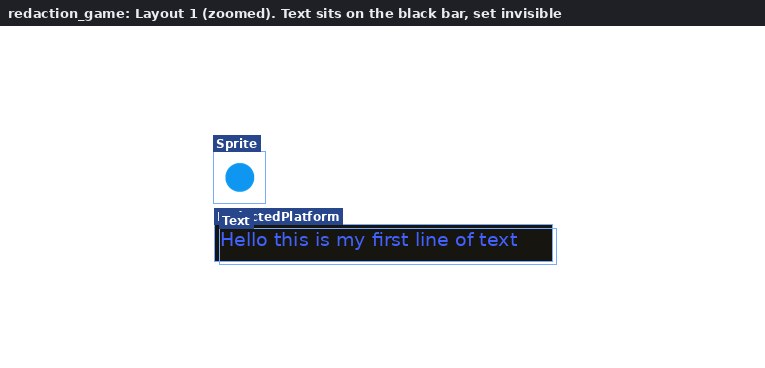
TEMPLATE 4 · COLLISIONS

Touch the black bar. Read what was hidden.

redaction_game.c3p

First try: Preview the collision that reveals the text. Change the hidden words and test again.

You can change the meaning and keep the interaction.

Used in: Lab 4 and 5

Open the guide →

TEMPLATE 5 · TAP REVEAL

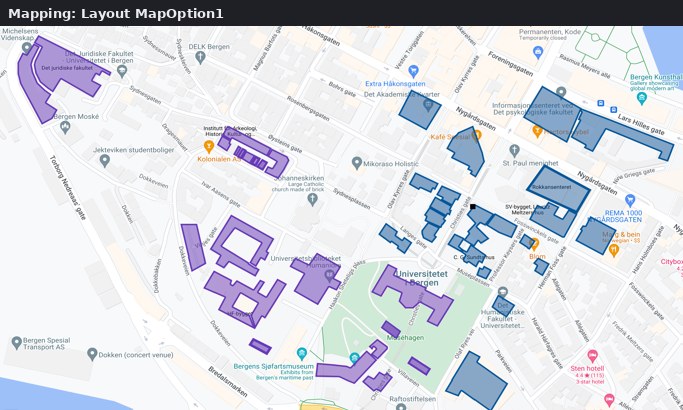
A map you can read in any order.

MappingasNonlinearStorytelling (2).c3p

First try: Choose a map and add one sentence about a place you know. Then build the tap reveal.

Placement and interaction tell a nonlinear story.

Used in: Lab 3, Part 2

Open the guide →

TEMPLATE 6 · ARRAYS AND JSON

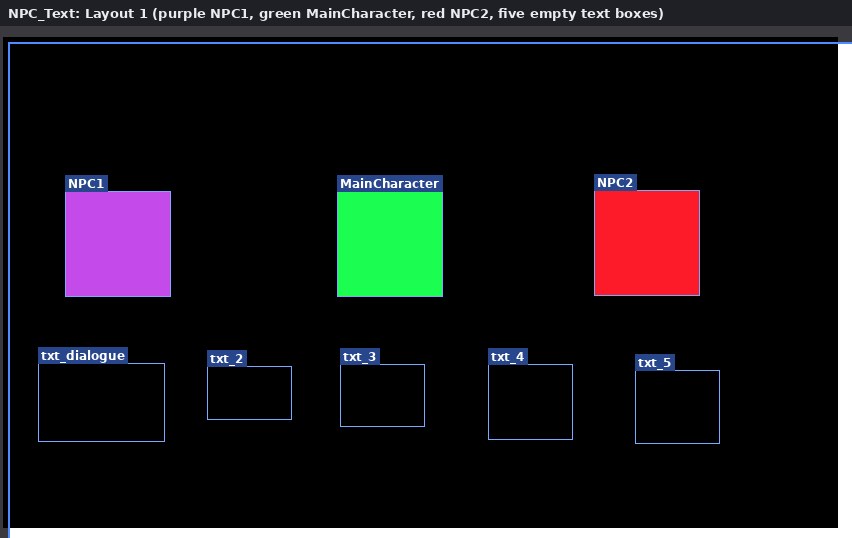
Your words, shuffled into another voice.

NPC_Text (2).c3p

First try: Tap MainCharacter. Change one word in NewArray.json. Preview and tap several times.

Different word lists produce different sentences.

Used in: Extra

Open the guide →

10 rules to remember

  1. Save a .c3p every 20 minutes. Menu › Project › Save as › Download a copy. Construct does not save to your computer by itself.
  2. Preview layout, not Preview project. Preview layout tests the layout you are looking at. Preview project always starts at the first layout.
  3. Every layout needs its Event sheet. Click empty layout space. In Properties, Event sheet must name the sheet with your rules.
  4. Name objects by what they are. Library, Door, Star. Never Sprite2. Your events will read like sentences.
  5. Words go in "quotes". Numbers do not. Set text to "Hello". Set X to 200.
  6. Search in every dialog. Every Add event, Add action and Insert dialog has a Search box at the top right.
  7. Ctrl + Z undoes almost anything. Mac: Cmd + Z. Deleted the last copy of an object? Undo brings it back.
  8. Right-click opens the menu. Insert new object, Lock, Copy, Delete. Double-clicking a picture opens the image editor.
  9. Initially visible off = hidden at the start. The editor still shows it faintly. A rule must show it.
  10. Guests get 25 events. Sign in and activate Pro with the course code from Mitt UiB for more.

Shortcuts

Ctrl + Z
Undo (Mac: Cmd + Z)
Ctrl + Y
Redo
Ctrl + C, Ctrl + V
Copy and paste an object or an event
Delete
Delete what is selected
Arrow keys
Nudge a selected object
Ctrl + mouse wheel
Zoom the layout in and out
Right-click
The menu: Insert new object, Lock, Delete
Double-click a picture
Open the image editor

Your screen

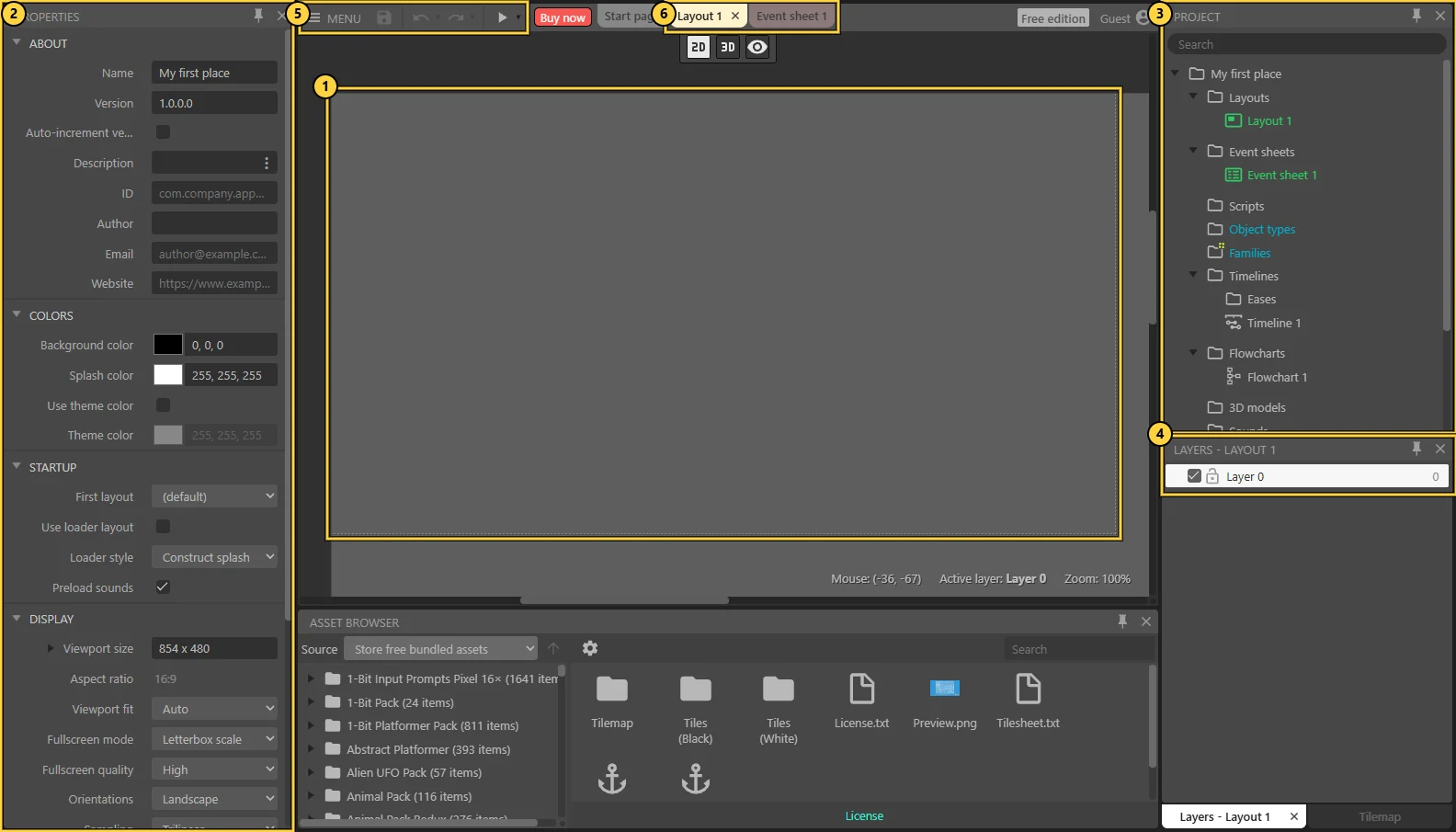
Construct editor with six numbered areas
① Layout ② Properties ③ Project Bar ④ Layers ⑤ Menu, Save, Undo, Preview ⑥ Layout and Event sheet tabs.

When it breaks

Nothing happens in Preview.
Check the layout's Event sheet in Properties, then that the condition names the object you tapped.
The text is cut off.
The Text box is too small. Drag a corner handle bigger.
The background moves when I click.
Right-click it › Lock › Lock selection.
It happens 60 times a second.
Every tick and "is overlapping" run all the time. Use an On… trigger, or add System › Trigger once while true.
My hidden text shows at the start.
Select it and untick Initially visible.
Every enemy reacts at once.
Your condition did not pick one instance. Use a condition on that object, such as On collision with or On tap object.
My score keeps resetting.
You set it in Every tick or On start of layout of a layout you return to. Use a global variable.
Two events fight each other.
Both are true in the same tick. Turn the second into Else, or give them different conditions.
Preview does not open.
Allow pop-ups for editor.construct.net.
My project is gone.
Look in Downloads for the .c3p and open it with Menu › Project › Open local file.
Red error in an action.
Missing "quotes" around words, or a spelling mistake in a name.
The template opens as a folder or a .zip.
Unzip it (right-click › Extract all) and open the .c3p inside. Ignore __MACOSX.

All 12 common mistakes, explained →

Tricks to try

Behavior

Sine

Floating, bobbing, pulsing. Movement, Period, Magnitude.

Behavior

Fade

Fade in, fade out, or both. Great for a reveal.

Action

Flash

Blink an object for a moment when something happens.

Behavior

Tween

Smoothly move, grow or turn to a value: Tween › Tween one property.

Behavior

Drag & Drop

Let the visitor move things by hand.

Behavior

8 Direction / Platform

Walk with the arrow keys, or run and jump.

Behavior

Scroll To

The camera follows an object around a big layout.

Behaviors

Bullet + Destroy outside layout

Things that fly and clean themselves up.

Action

System › Wait

Pause between actions: show a line, wait 2 seconds, show the next.

Condition

Trigger once while true

Turns a constant check into a single moment.

Action

Go to layout

Move the visitor to another scene or room.

Event sheet

Global variables

Remember a score, a choice or a visit across layouts.

Event sheet

Groups and comments

Name parts of your sheet so you can find them again.

Event sheet

Functions

Write a set of actions once and call it from many events.

Preview menu

Debug layout

See every object and variable live while the project runs.

Object

Local Storage

Keep data even after the browser is closed.

The full trick list with examples →

Where to get help

Look under the scene
Every Lab 3 scene has a "Stuck? Open this first" box.
Ask a neighbour or Ingrid
Stuck for more than 3 minutes? Ask. Everyone gets stuck.
Send AI a screenshot
Describe what you expected and what happened. Keep your own choices.
Construct Beginner's guide
construct.net tutorials ↗
Construct forum and r/construct
People who use Construct every day.

The coding museum

HTML, CSS, JavaScript, animation and practical VS Code advice. Explore an imagined Ada Lovelace and Alan Turing conversation, change a live specimen, or go straight to the problem you want to solve.

Enter the optional coding museum →

Get Alinta’s Construct files

Open the course Files section in MittUiB, download the .c3p named in your task, then open it from inside Construct.

How to download and open the project

Construct cannot see the file? Check here.

THE LAB FLOOR / EIGHT MACHINES

Pick a machine. Each one is a guide.

BEFORE VS CODE. BEFORE CONSTRUCT. BEFORE AI.

The Hall of lab legends

Every tool in this room stands on three people who built computers before electricity ran them. Their machines were made of gears, cards and paper tape. Their questions are still ours.

Charles Babbage1791-1871

The engine builder

He published his Difference Engine plan in 1822 and conceived the Analytical Engine in 1834. Neither complete engine was built in his lifetime. The Analytical Engine was meant to be programmed with punched cards.

In this lab: every Construct event is a tiny engine. Condition in, action out.

Ada Lovelace1815-1852

The first programmer

In 1843 she published notes on Babbage’s engine. Note G describes an algorithm for calculating Bernoulli numbers on the proposed Analytical Engine. She also saw that the machine could work with music and symbols, not just numbers.

In this lab: your JavaScript is a list of steps, just like Note G.

Alan Turing1912-1954

The machine thinker

In 1936 he imagined a machine that reads and writes symbols on an endless tape: a foundational model of computation. In 1950 he asked “Can machines think?” and proposed the imitation game.

In this lab: when you code with AI, you are working inside his question.

Ask for help

Bring your idea, a question or something that isn’t working to the lab. If nobody knows the answer, we look it up together.

You can follow these guides without AI. Use the examples to learn a technique, then try it in your own project.