LAB 03 · FRIDAY 16 OCTOBER · PART 2
Alinta's map.
A place that keeps a secret.
Open the Mapping template, name the places that matter to you, hide a thought, and let a tap reveal it.
⏱ Morning 09:10-09:40 · Afternoon 15:10-15:40 · then the screenshot for Obligatory Task 4 at 09:45 / 15:45
PART 2 OF 2 · ALINTA'S MAP
You know the program now. Here you use the same tools on Alinta's Mapping template and build a campus map that keeps a secret. Every scene starts where the last one ended. The yellow numbers match the steps.
Your own project comes first. Building something already? Use these scenes as a tutorial and add the same tap-reveal rule to your own .c3p. The template is a practice ground, not a requirement.
Part 2 · Alinta's map · 1 of 10 · about 3 min
Open the map
SO FARFrom Part 1 you know objects, Properties, behaviors and events.
NOWOpen Alinta's template. It already holds a map of our campus, ready for your places.
DO THIS
- Download the Get MappingasNonlinearStorytelling (2).c3p in MittUiB Files ↗ (.c3p).
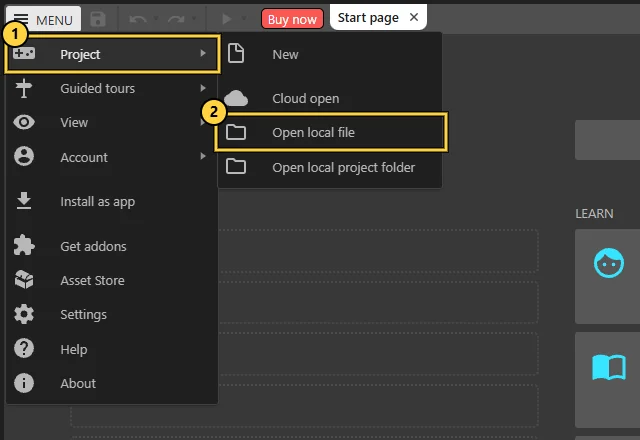
- In Construct, choose Menu › Project › Open local file and pick the file. ①②
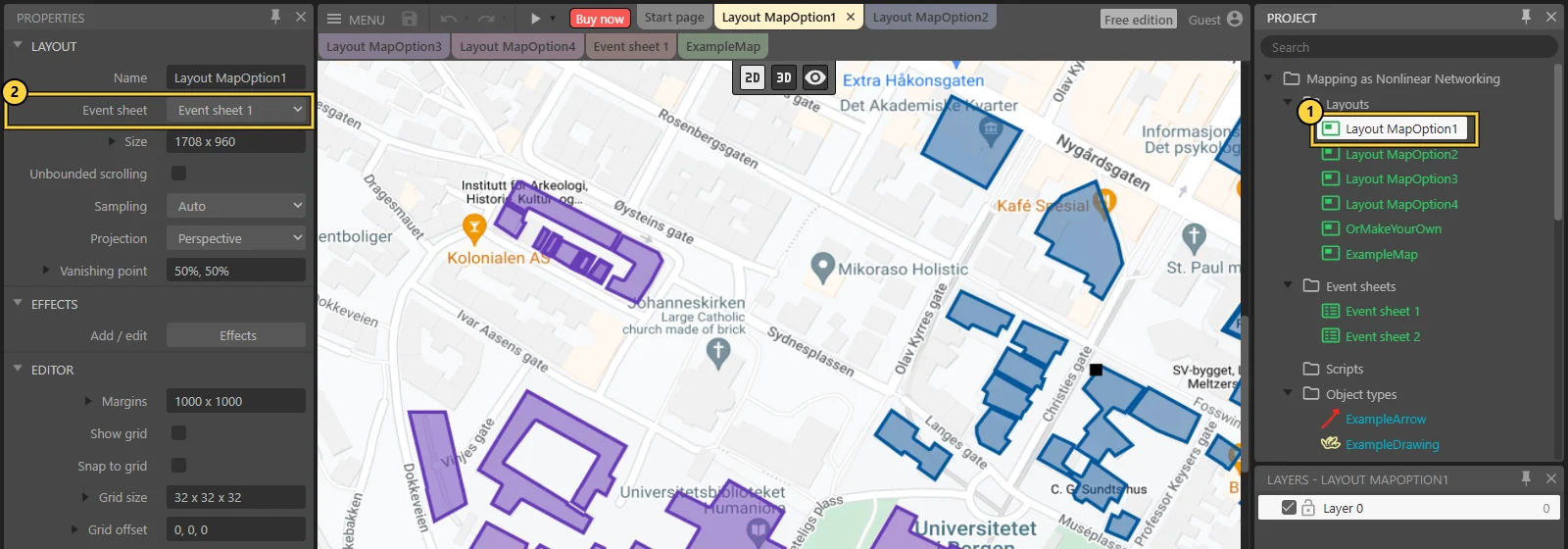
- In the Project Bar on the right, double-click Layout MapOption1.
YOU SHOULD SEE
The campus map fills the middle. In Properties, Event sheet says Event sheet 1.
Why MapOption1? It is already linked to an event sheet. The other maps say (none): pick one of those and you must set its Event sheet first.
Stuck? Open this first
- Where is the template? Mitt UiB › Files: MappingasNonlinearStorytelling (2).c3p.
- It downloaded as a .zip or a folder: unzip it first (right-click › Extract all), then open the .c3p inside. Ignore the __MACOSX folder.
- Open local file shows nothing: look in Downloads and choose the file that ends in .c3p.
Still stuck after 3 minutes? Ask your neighbour or Ingrid. Everyone gets stuck: that is how you learn this program.
NEXT UP
Pin the map down. The map is one big picture. Lock it before you build on top.
Part 2 · Alinta's map · 2 of 10 · about 1 minNew: Lock
Pin the map down
SO FARAlinta's campus map, open in Layout MapOption1.
NOWThe map is one big picture underneath everything. Lock it, so it stays put while you build on top.
DO THIS
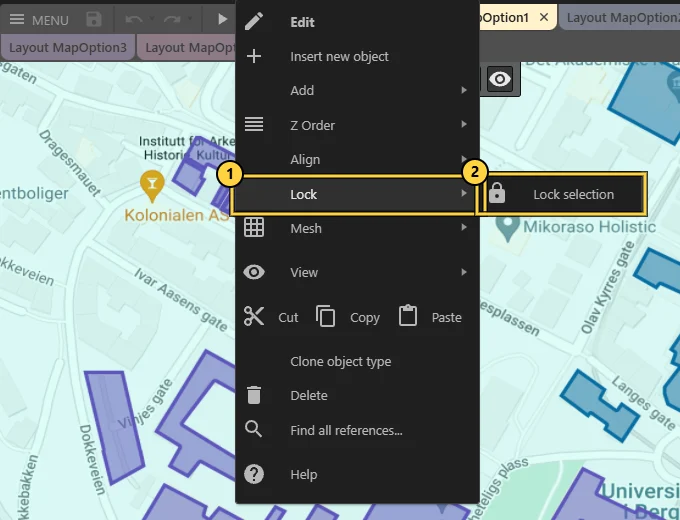
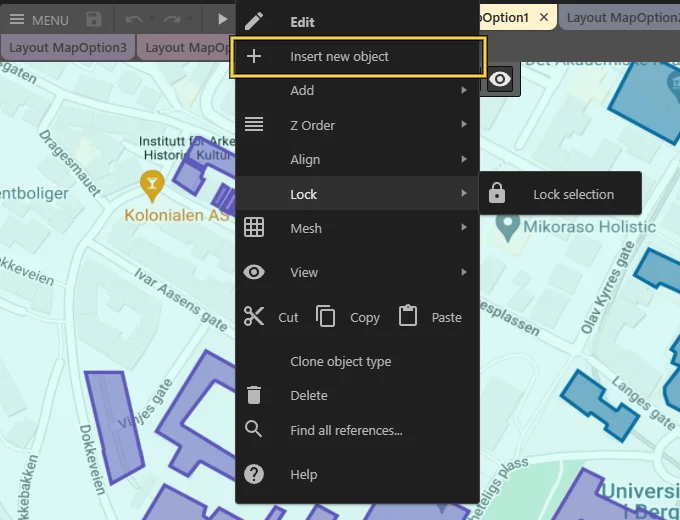
- Right-click the map.
- Choose Lock › Lock selection. ①②
YOU SHOULD SEE
Clicking the map no longer grabs it. You can work on top without dragging the whole campus away.
NEXT UP
Name your first place. A Text object, just like Welcome in Part 1.
Part 2 · Alinta's map · 3 of 10 · about 6 min
Name your first place
SO FARA locked map you can build on.
NOWA Text object is a label you can put anywhere. Start with one place that means something to you.
DO THIS
- Right-click the map and choose Insert new object.
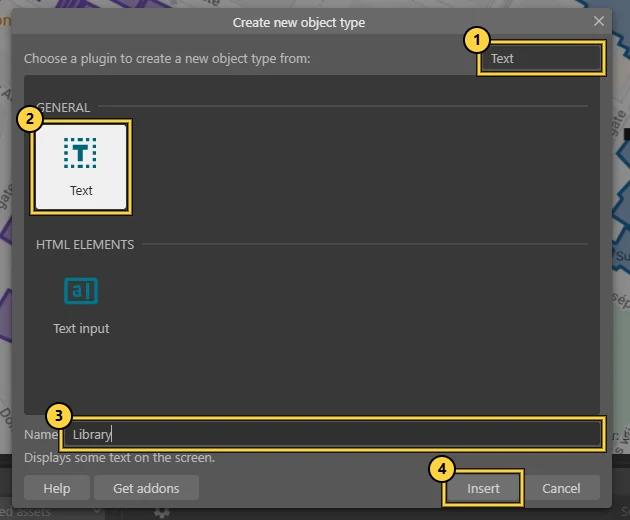
- Type Text in Search ①, select Text ②, give it a name such as Library ③, then Insert ④.
- Click the map where your place is.
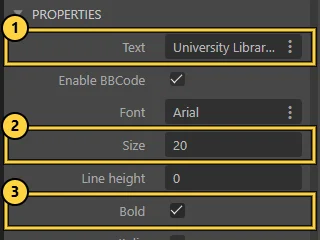
- In Properties: write your sentence in Text ①, set Size to 20 ②, tick Bold ③.
YOU SHOULD SEE
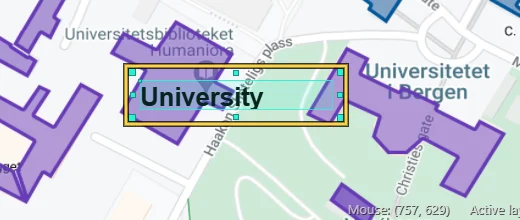
Your words on the map. Only part of the sentence shows? The box is too small. Drag its corner handle bigger:
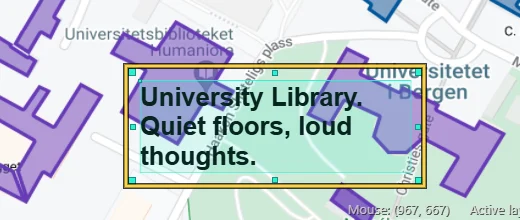
Add two more places the same way. Give each one its own name.
Stuck? Open this first
- The image editor opened: you double-clicked the map. Close it with ×. Use right-click › Insert new object instead.
- The map moves when you click: go back one scene and lock it.
Still stuck after 3 minutes? Ask your neighbour or Ingrid. Everyone gets stuck: that is how you learn this program.
NEXT UP
Hide a thought. A second text that stays invisible until someone taps.
Part 2 · Alinta's map · 4 of 10 · about 3 min
Hide a thought
SO FARYour places, written on the map.
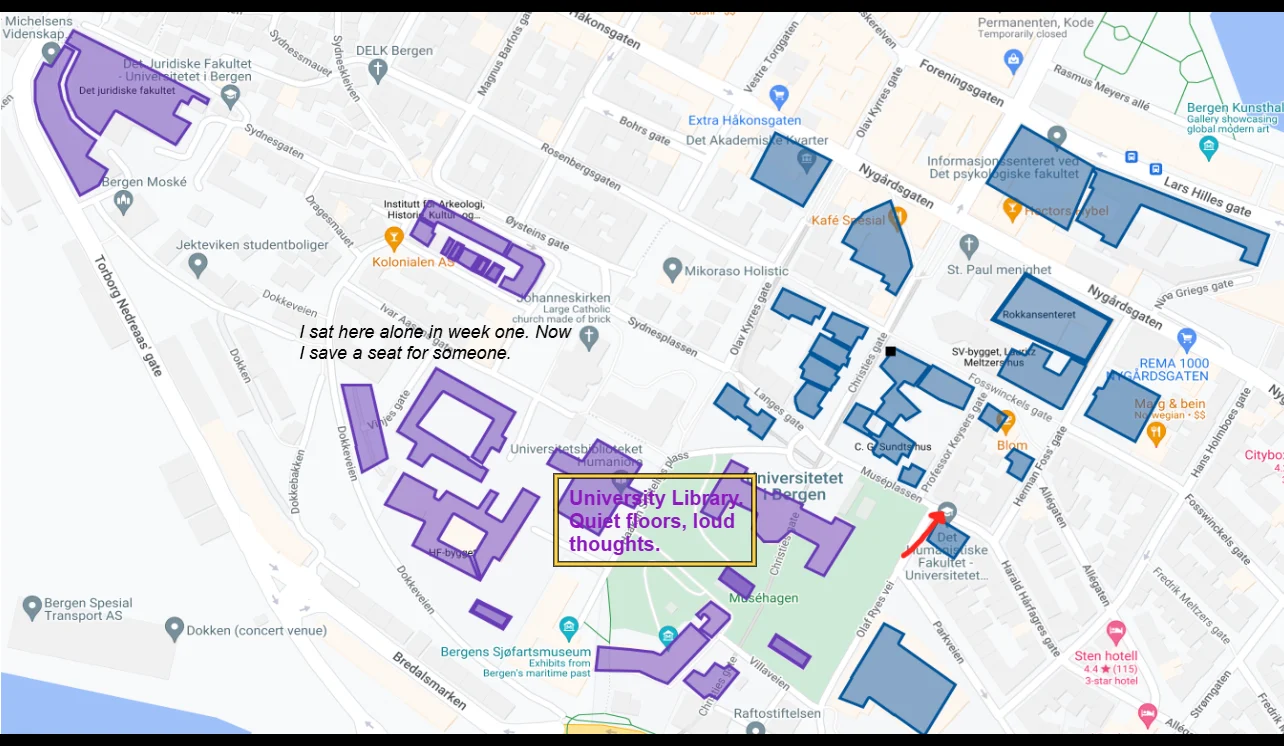
NOWNow write something the visitor cannot see yet. This is the part of the place only a tap reveals.
DO THIS
- Insert another Text object and name it HiddenThought.
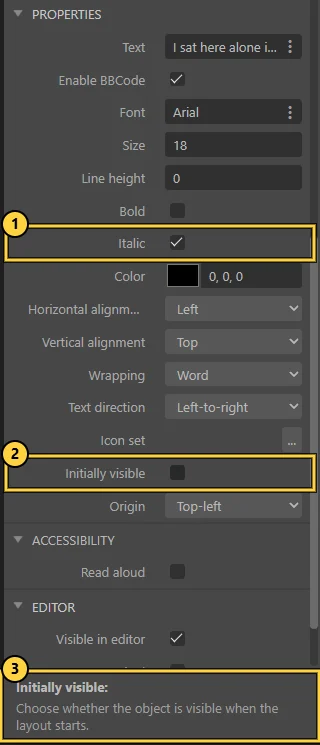
- Write one sentence in Text. Tick Italic ① if you like.
- Untick Initially visible ②.
YOU SHOULD SEE
It still shows in the editor, so you can find it. It hides when the map runs. ③ Construct explains every property at the bottom of the panel.
NEXT UP
Give the map ears. Touch lets the map notice a tap.
Part 2 · Alinta's map · 5 of 10 · about 2 min
Give the map ears
SO FARPlaces and a hidden thought.
NOWYour map cannot notice a tap yet. The Touch object is its ears.
DO THIS
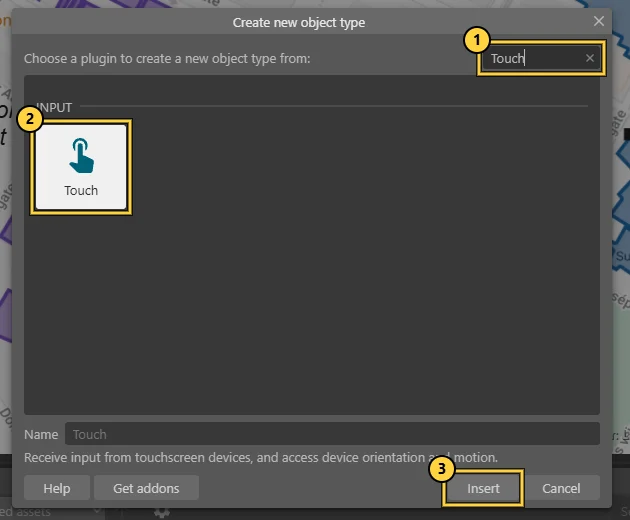
- Right-click, Insert new object, type Touch ①, select it ②, Insert ③.
YOU SHOULD SEE
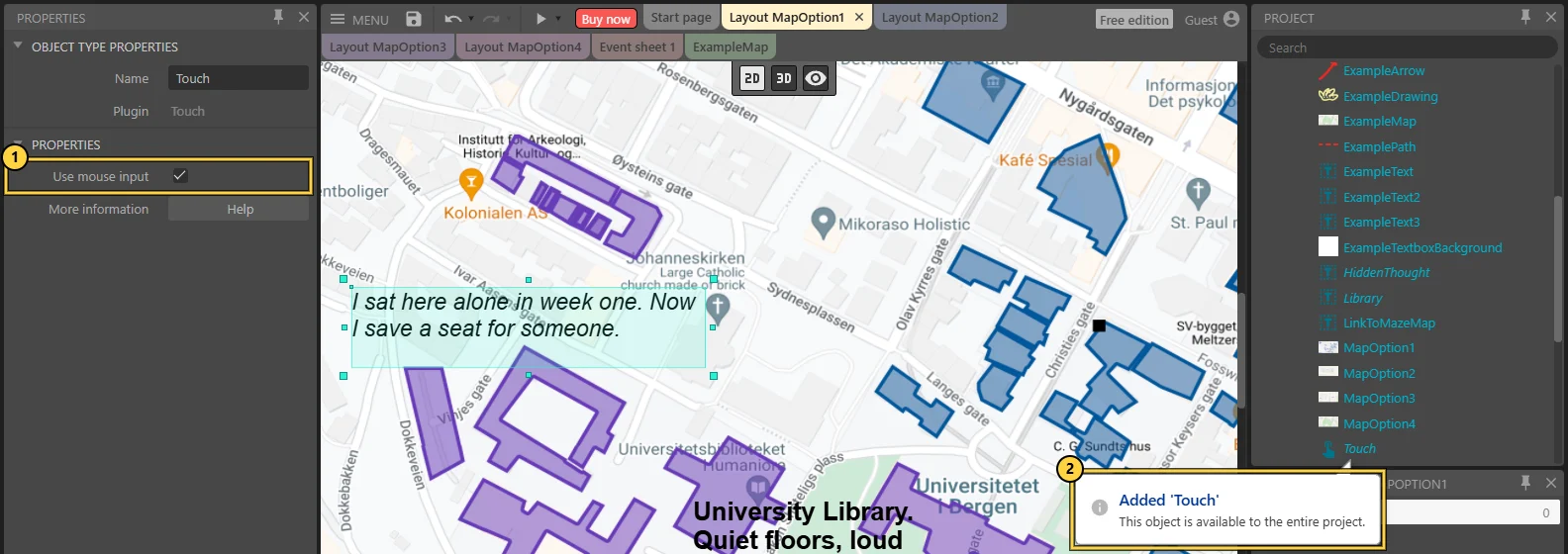
A note says Added 'Touch'. You do not place it on the map: it listens to the whole project.
NEXT UP
Write the rule: when… A condition, like On start of layout, but for a tap.
Part 2 · Alinta's map · 6 of 10 · about 5 min
Write the rule: when…
SO FARTouch is in the project.
NOWAn event is a sentence. The left half listens for something. The right half does something.
DO THIS
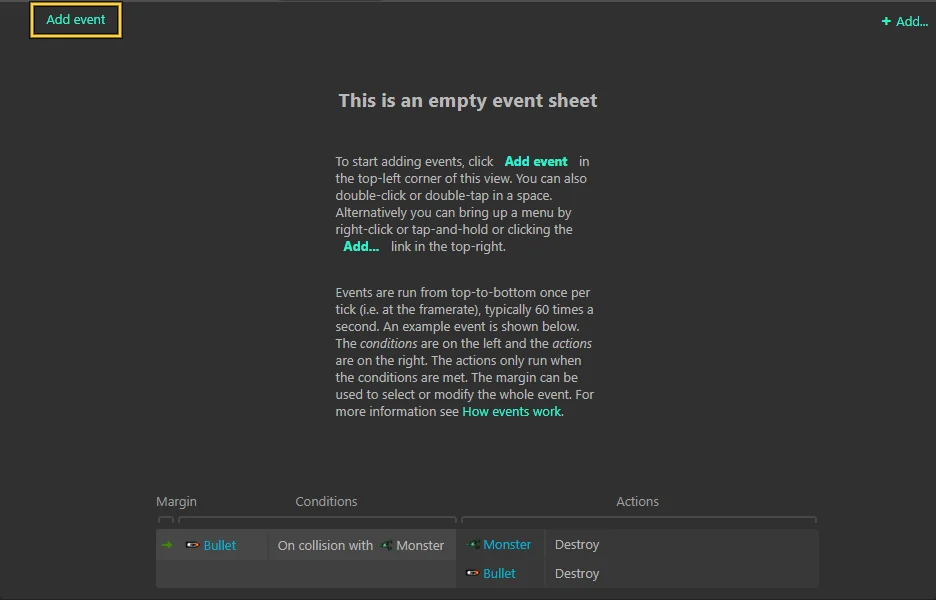
- Open the Event sheet 1 tab and click Add event.
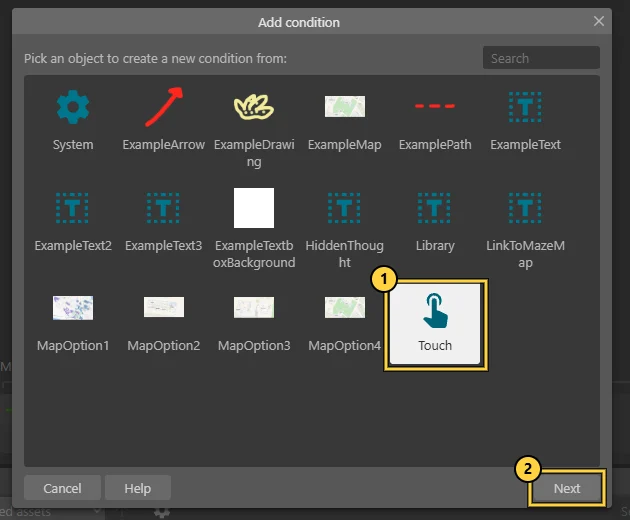
- Choose Touch ①, then Next ②.
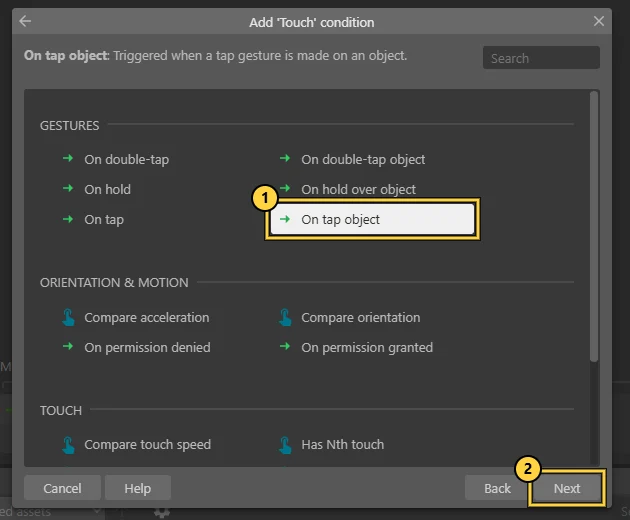
- Choose On tap object ①, then Next ②.
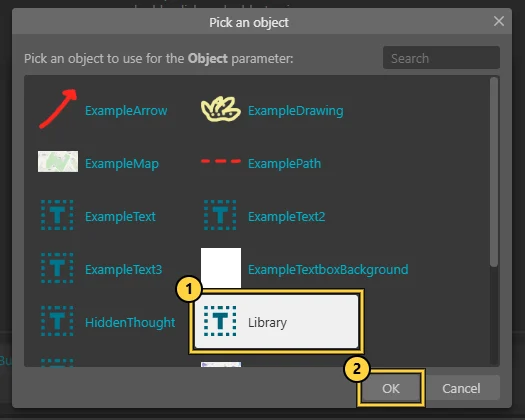
- Click <click to choose>, pick Library ①, OK ②, then Done.
YOU DID THIS IN LAB 2
addEventListener("click", …) is the same as On tap object: wait for the visitor, then act.
YOU SHOULD SEE
A new row with Touch on the left: On tap gesture on Library. The dialog said On tap object; the row says On tap gesture on. Same thing.
Stuck? Open this first
- Library is not in the list: you gave your place another name. Pick that name: it is your place.
- Chose the wrong object: double-click the condition and choose again.
Still stuck after 3 minutes? Ask your neighbour or Ingrid. Everyone gets stuck: that is how you learn this program.
NEXT UP
…then do this. The action that shows the hidden thought.
Part 2 · Alinta's map · 7 of 10 · about 4 min
…then do this
SO FARA rule that hears a tap on your place.
NOWThe rule can hear the tap. Now tell it what to do.
DO THIS
- On the same row, click Add action.
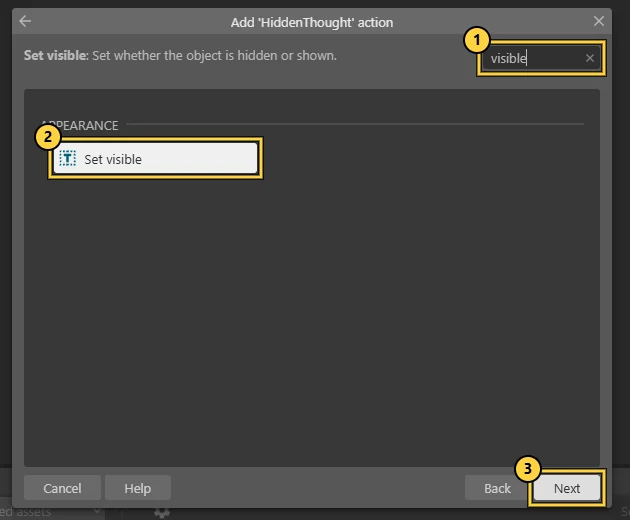
- Choose HiddenThought, then Next.
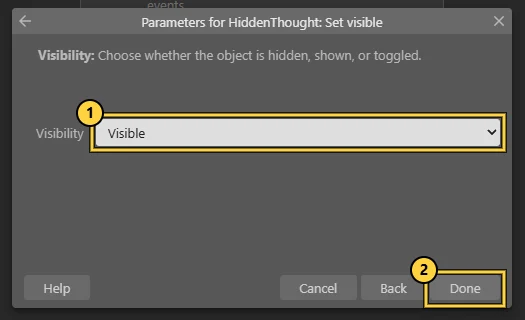
- The list is long: type visible in Search ①, choose Set visible ②, Next ③.
- Keep Visible and choose Done.
YOU SHOULD SEE
One finished row. Left: On tap gesture on Library. Right: Set visibility Visible.
Without an account Construct allows 25 events per project. You need one today. Activate Pro (above) for more.
Stuck? Open this first
- HiddenThought is missing: you named it differently. Choose the name you gave your hidden text.
Still stuck after 3 minutes? Ask your neighbour or Ingrid. Everyone gets stuck: that is how you learn this program.

NEXT UP
Play it. Be your own visitor and test it.
Part 2 · Alinta's map · 8 of 10 · about 3 min
Play it
SO FARA finished rule: tap, and the thought appears.
NOWTime to be your own visitor.
DO THIS
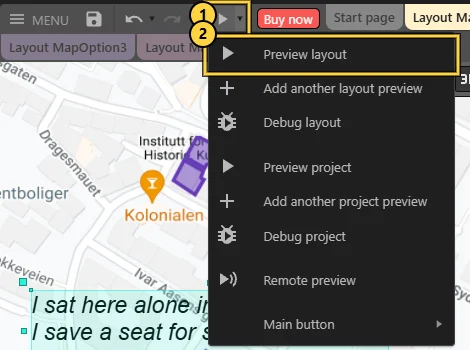
- Click the small arrow next to ▶ ① and choose Preview layout ②.
- Click or tap your place.
YOU SHOULD SEE
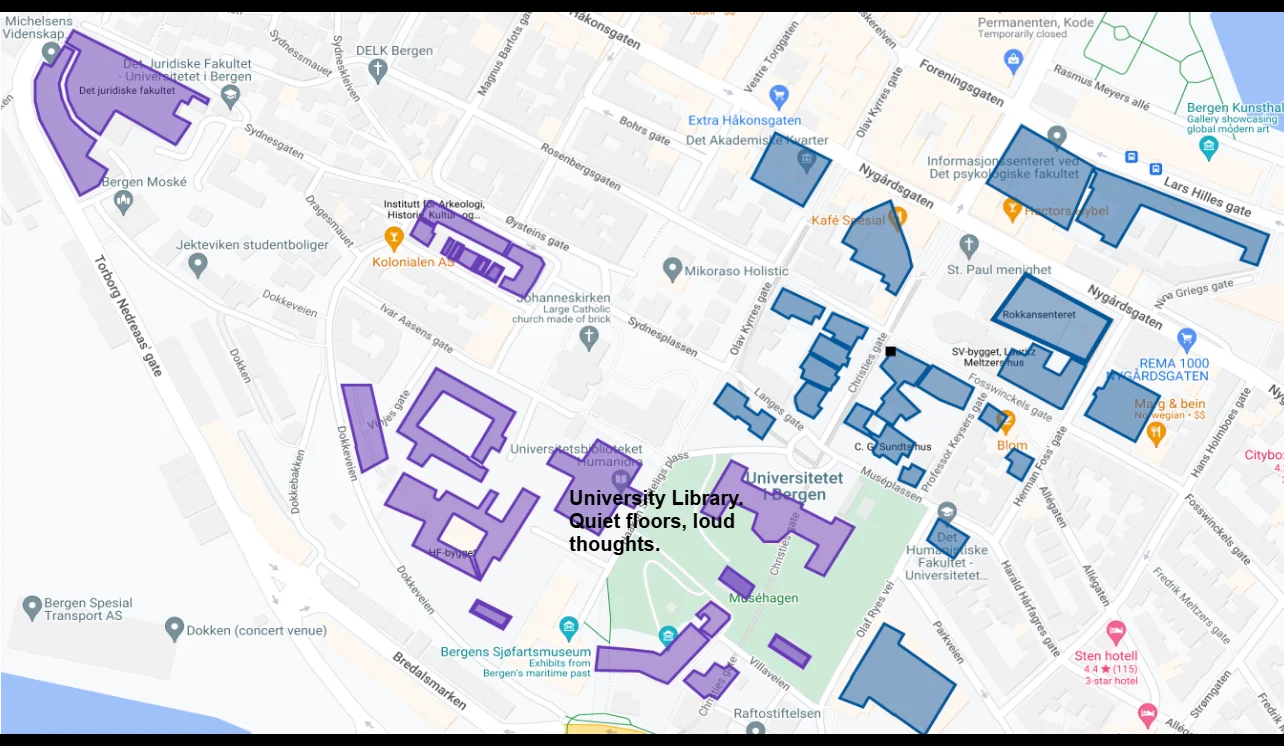
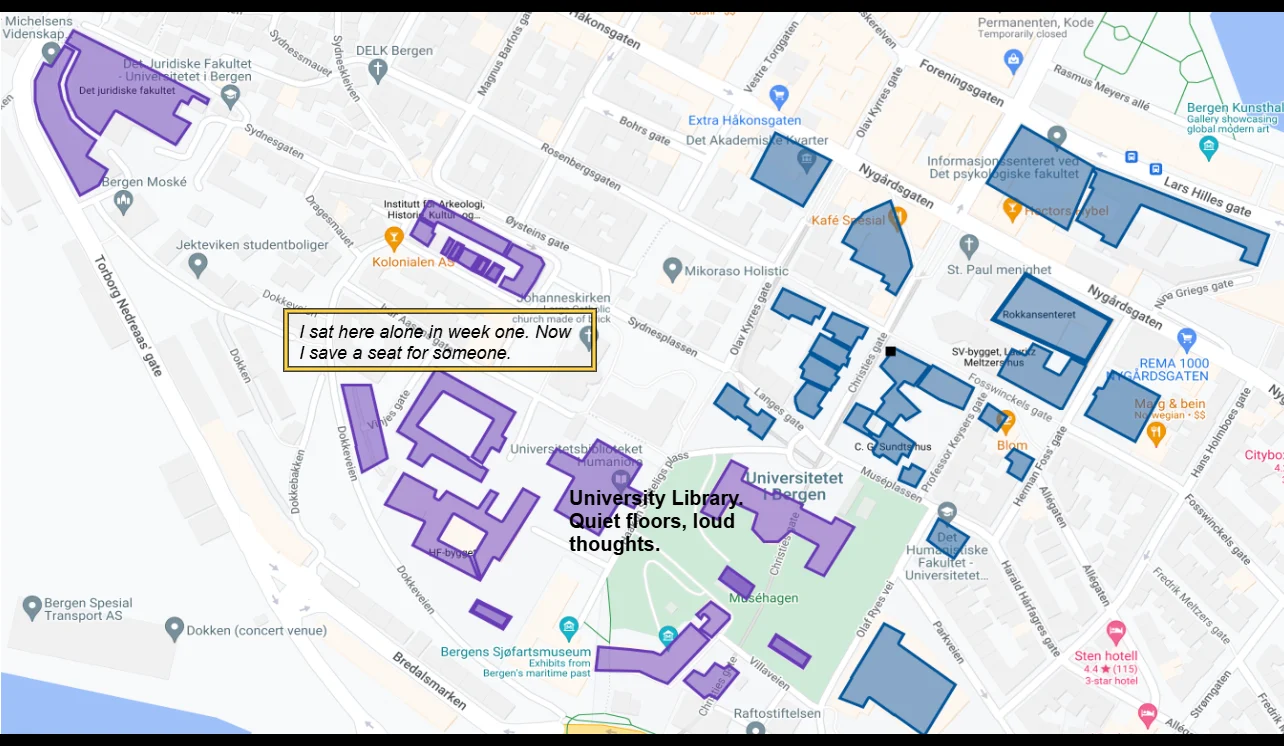
The thought appears only after you tap the right place. Tapping anywhere else does nothing: that is the condition doing its job.
Nothing happened?
- Shows before the tap: select HiddenThought and untick Initially visible.
- Never shows: the row must name the place you tapped, and the action must name HiddenThought.
- Wrong map in Preview: use Preview layout, not Preview project.
- Still nothing: click empty map space and check that Event sheet says Event sheet 1.
NEXT UP
Keep it. Save before you do anything else.
Part 2 · Alinta's map · 9 of 10 · about 1 min
Keep it
SO FARA map that keeps a secret.
NOWYour map exists only in this browser until you save a copy.
DO THIS
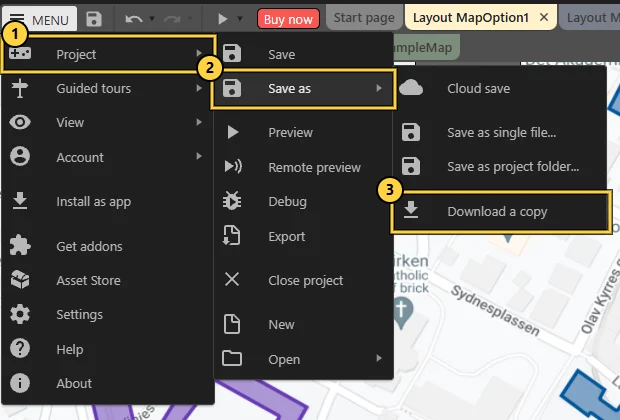
- Choose Menu › Project ① › Save as ② › Download a copy ③.
- Keep the .c3p file somewhere you can find again.
YOU SHOULD SEE
A .c3p file in your Downloads. That is the whole editable project. Bring it next Friday.
NEXT UP
Show it: Obligatory Task 4. Post one screenshot so your work counts.
Part 2 · Alinta's map · 10 of 10 · about 5 minNew: Obligatory
Show it: Obligatory Task 4
SO FARA saved map and a posted screenshot.
NOWYour work counts when someone can see it. Post one picture of today's result.
DO THIS
- In Preview, make your map show its secret.
- Take a screenshot. Windows: Windows key + Shift + S · Mac: Cmd + Shift + 4 · Chromebook: Ctrl + Shift + Show windows.
- Open Mitt UiB › Discussions and choose Obligatory Task 4.
- Reply with your screenshot and one sentence: what does the tap reveal?
YOU SHOULD SEE
Your post under Obligatory Task 4. Do it every lab: Lab 3 › Task 4, Lab 4 › Task 5, Lab 5 › Task 6.
Stuck? Open this first
- Cannot find Obligatory Task 4: Mitt UiB › DIKULT105 › Discussions. Ask Ingrid if it is not there yet.
- Screenshot shortcut does nothing: use the Snipping Tool (Windows) or Screenshot app (Mac), or ask a neighbour.
Still stuck after 3 minutes? Ask your neighbour or Ingrid. Everyone gets stuck: that is how you learn this program.
NEXT UP
Level up, or your own project. Pick one extra skill, or bring the tap rule into your own project.
LEVEL UP · PICK ONE WHEN YOUR MAP WORKS
Level up · optional · about 3 minNew: Toggle
Level up A: tap again to hide
SO FARYour map works.
NOWA secret you can close again feels more like a secret.
DO THIS
- Double-click Set visibility Visible in your row.
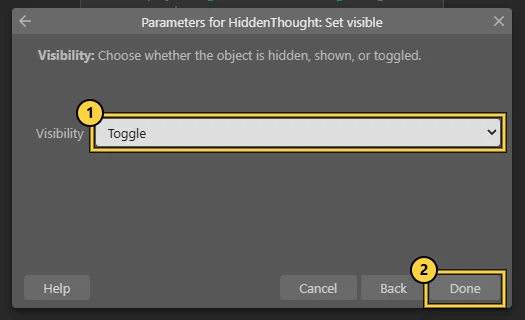
- Change Visibility to Toggle ① and choose Done ②.
- Preview. Tap once: it shows. Tap again: it hides.
YOU SHOULD SEE
The row now says Set visibility Toggle.

NEXT UP
Another Level up. Or add Toggle to your own project.
Level up · optional · about 4 minNew: Two actions, one event
Level up B: mark the place as visited
SO FARYour map works.
NOWOne tap can do more than one thing. Make the place remember that someone was here.
DO THIS
- On the same row, click Add action again and choose Library.
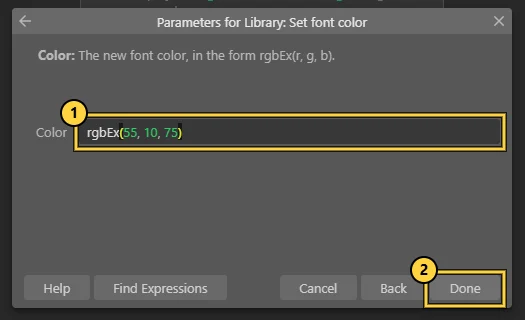
- Type color in Search and choose Set font color.
- Write rgbEx(55, 10, 75) ① and choose Done ②. Each number goes from 0 to 100: red, green, blue.
YOU SHOULD SEE
Two actions under one condition. Both run on the same tap, from top to bottom.

NEXT UP
Another Level up. Or let places in your own project remember a visit.
Level up · optional · about 6 minNew: Go to layout
Level up C: walk to another map
SO FARYour map works, and now it has a path.
NOWThe template is called Mapping as Nonlinear Networking. Let the visitor choose where to go next.
DO THIS
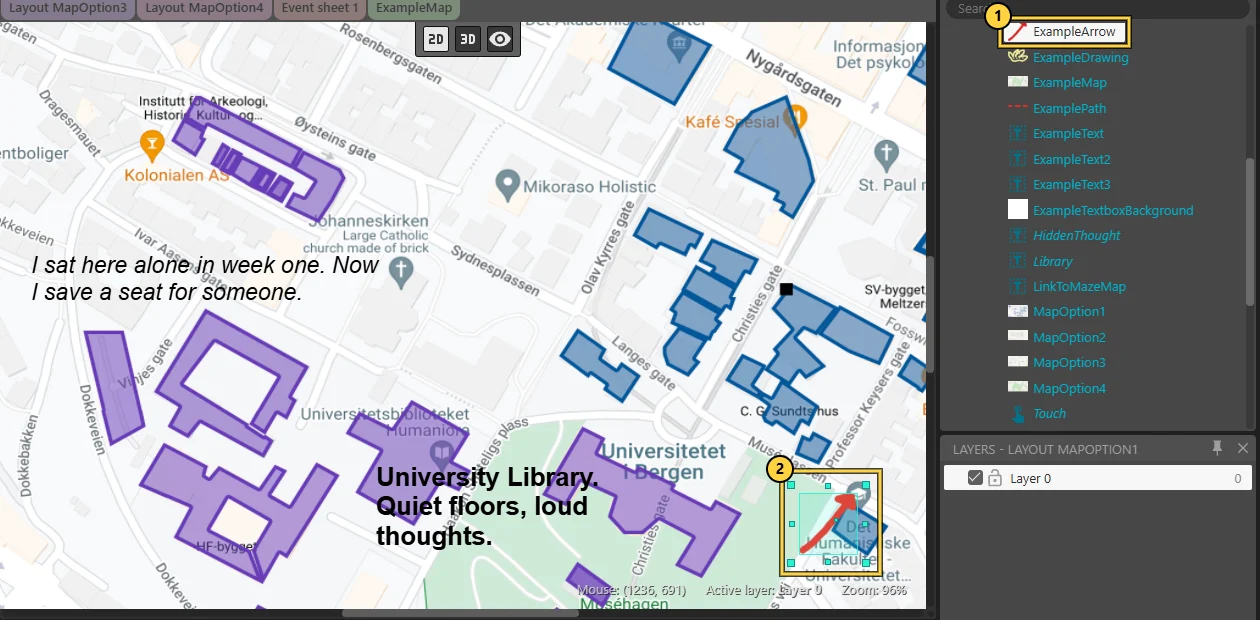
- Drag ExampleArrow from the Project Bar ① onto your map ②.
- In the event sheet, Add event: Touch › On tap object › ExampleArrow.
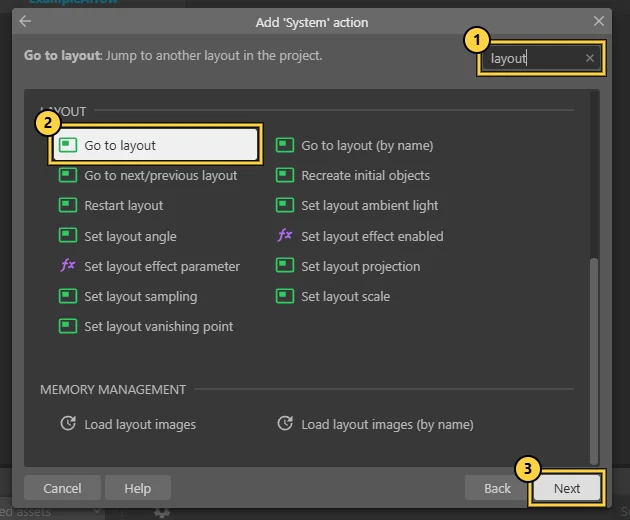
- On that new row, Add action › System › Next. Type layout in Search ① and choose Go to layout ② › Next.
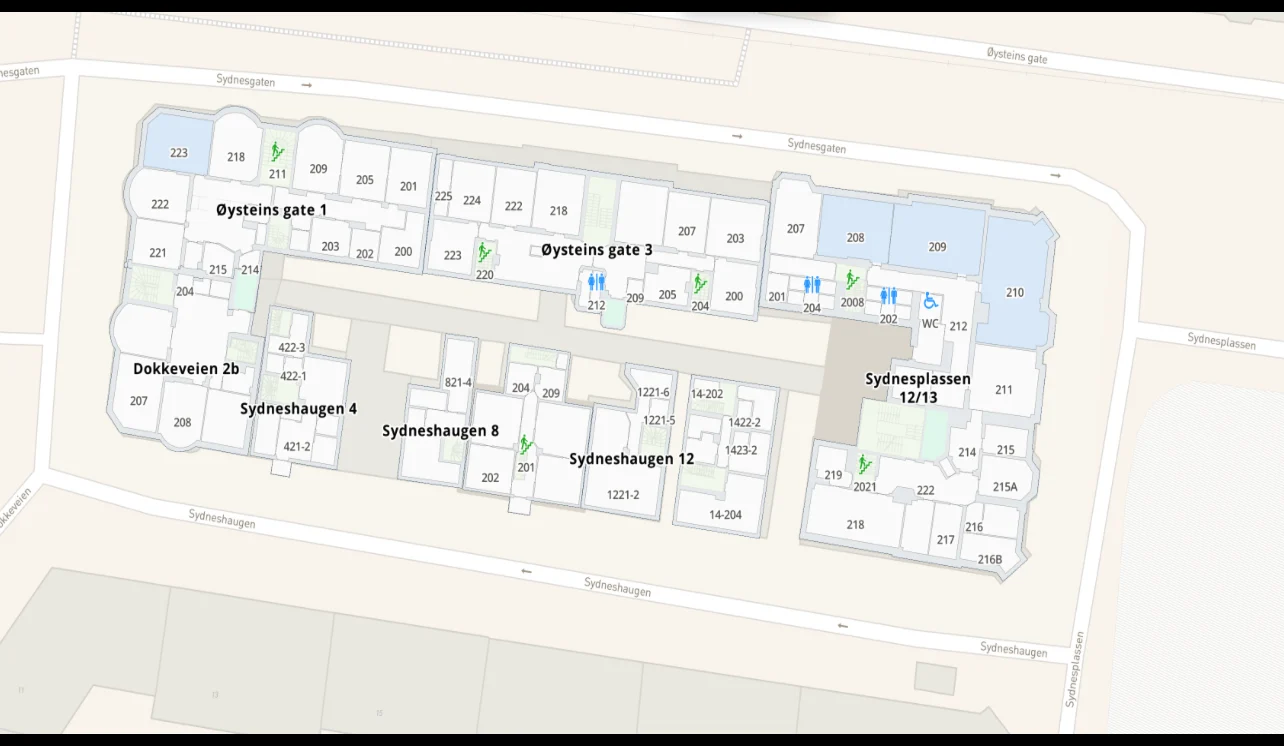
- Choose Layout MapOption2 and Done. Preview and tap the arrow.
YOU SHOULD SEE
Event 2 reads On tap gesture on ExampleArrow › Go to Layout MapOption2. Your map now has a path.

NEXT UP
Your own project. Use Go to layout to connect the scenes of your own story.
A workshop, not a speedrun. Continue your own project if you already have one. Choose a small reveal that fits it.
Ready for another experiment? NPC_Text
Open Get NPC_Text (2).c3p in MittUiB Files ↗Then follow the template walkthrough →. Tap the green MainCharacter square. In the Project Bar's Files folder, open NewArray.json and replace the word choices with your own. Preview and tap again: which sentences does your list make possible?
Continue: build a second response
Keep this Construct project. Add another tap target and message, then choose how the responses work together.
Continue the Construct workshopFinished? Back to Lab 3: save your work and tick Obligatory Task 4 →
Construct 1: first contact
- 0-5 min
Arrive: open Construct
Open editor.construct.net in Chrome or Edge. Sign in and activate Pro if you can.
Details & help
Do: Open editor.construct.net in Chrome or Edge. Sign in and activate Pro if you can. Open your own project if you have one. No account yet? Work as a guest today: 25 events is plenty.
- 5-15 min
Together: Construct in ten minutes
Watch on the big screen and copy each click: Part 1, scenes 1 and 2.
Details & help
Do: Watch on the big screen and copy each click: Part 1, scenes 1 and 2. Ingrid makes a new project and names the six areas of the screen. You do the same on your computer.
- 15-45 min
Part 1: Construct from zero
Follow scenes 3 to 11 at your own pace. Use your own picture and your own words.
Details & help
Do: Follow scenes 3 to 11 at your own pace. Use your own picture and your own words. Each scene says how long it takes. Stuck? Open "Stuck?" under the scene, then ask. Save a .c3p before the break.
- 45-55 min
Break: step away
Save your .c3p first. Then take a real break.
Details & help
Do: Save your .c3p first. Then take a real break. Stretch, get water or leave the screen.
- 55-85 min
Part 2: Alinta's map, or your own project
Next page: build a map that keeps a secret. Or add the same tap rule to your own project.
Details & help
Do: Next page: build a map that keeps a secret. Or add the same tap rule to your own project. The template is a practice ground. Your own project counts more. Not finished? You continue in Lab 4.
- 85-90 min
Short break: reset
Save your .c3p and take a real break.
Details & help
Do: Save your .c3p and take a real break. Stretch, get water or leave the screen.
- 90-100 min
Screenshot → Obligatory Task 4
Preview your work, take a screenshot and post it on Mitt UiB under Obligatory Task 4.
Details & help
Do: Preview your work, take a screenshot and post it on Mitt UiB under Obligatory Task 4. Windows: Windows key + Shift + S. Mac: Cmd + Shift + 4. Then save your .c3p one more time.
- 100-105 min
One next step
Write one thing you learned and one thing to try in Lab 4.
Details & help
Do: Write one thing you learned and one thing to try in Lab 4. Keep your .c3p file. Bring it next Friday.